

Every strategy review starts with the same question: where do we stand? With the new Strategy Deployment, you can answer it the moment you open your plan. Every X-matrix is now a review dashboard with the overall status, KPIs, projects and responsible people on a single page. And you can view the plan itself three ways: as the classic X-matrix, as a strategic plan table, or grouped by pillars.
What's new
A review dashboard for every plan
Three views of the same plan: X-matrix, Strategic Plan and Pillars
Statuses calculated from your projects and KPIs, with the reason one hover away
KPI charts, project progress and owners side by side
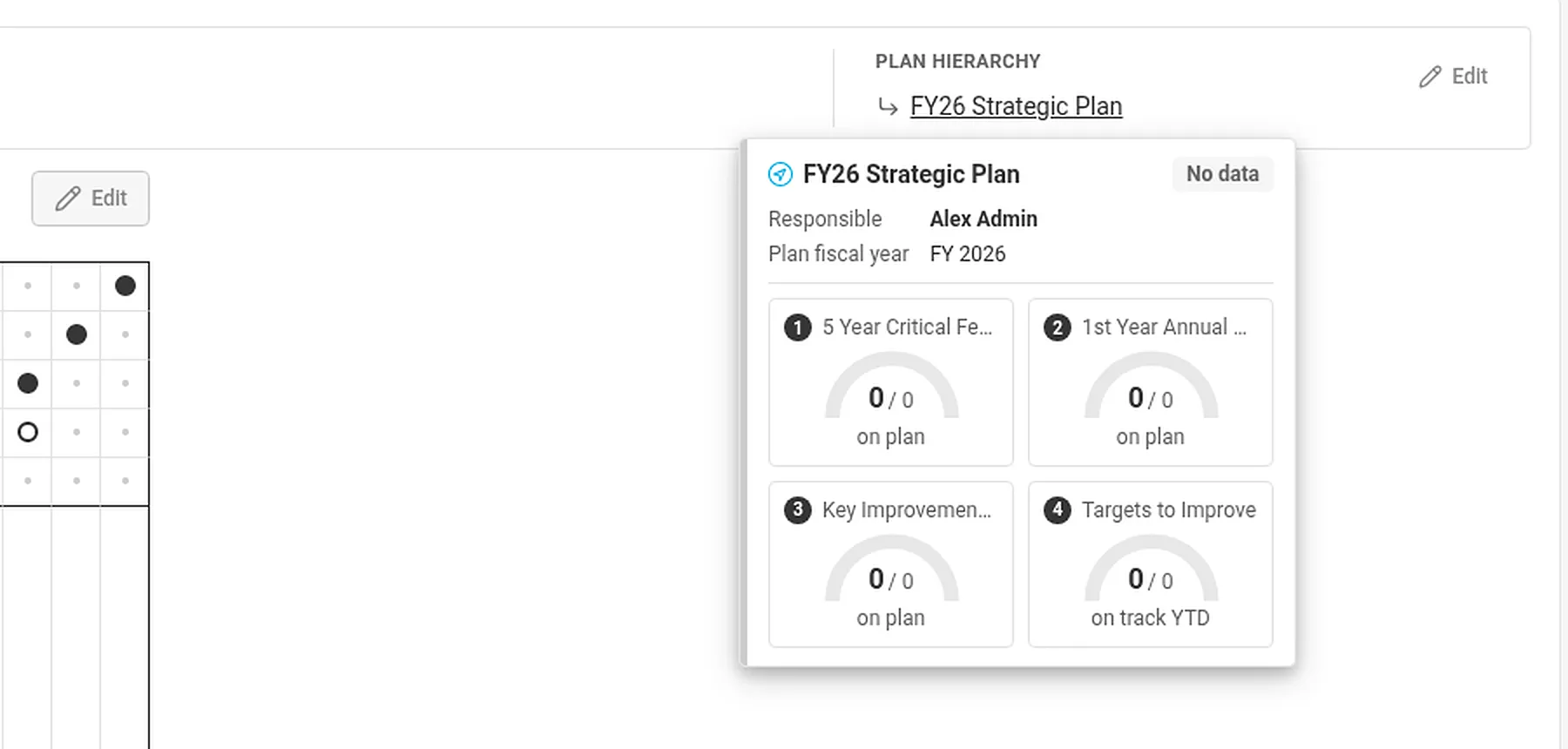
A plan hierarchy that shows the plans above and below yours
Editing in place instead of a separate edit screen
A 5-step setup guide and a sample plan
Plan fiscal year, optional matrix corners, and PDF, PowerPoint and PNG exports
One page for the whole review
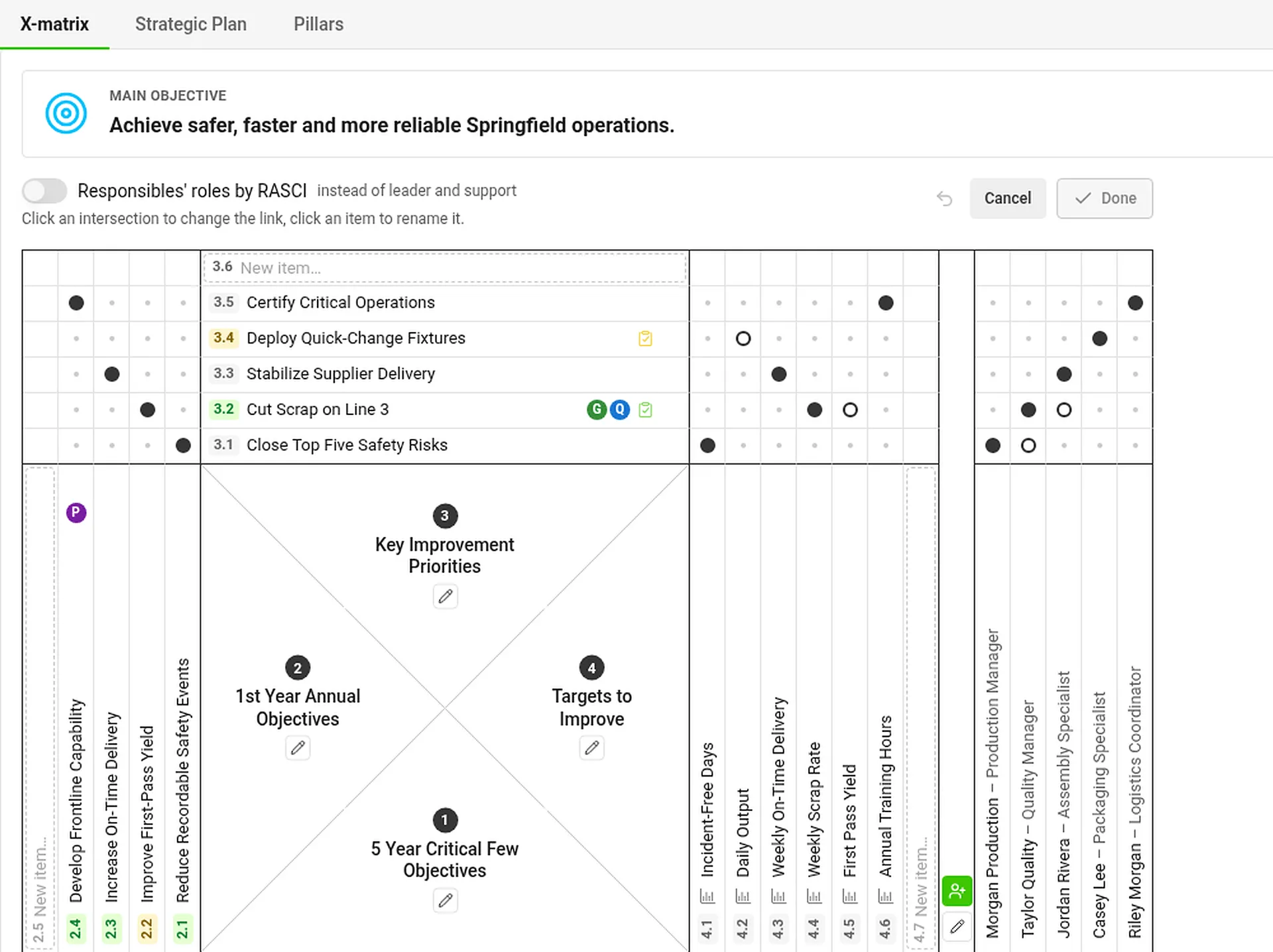
Open any plan and you land on the new dashboard. At the top is the main objective of the plan with the plan hierarchy, and below it the full X-matrix. Every goal, priority and KPI has a code, such as 2.3 or 3.1, that stays the same everywhere on the page. The color of the code is the status of the item. A filled dot is a primary link and a hollow dot a secondary one, while empty cells show a small gray dot, so you see at a glance what is linked and what is not.
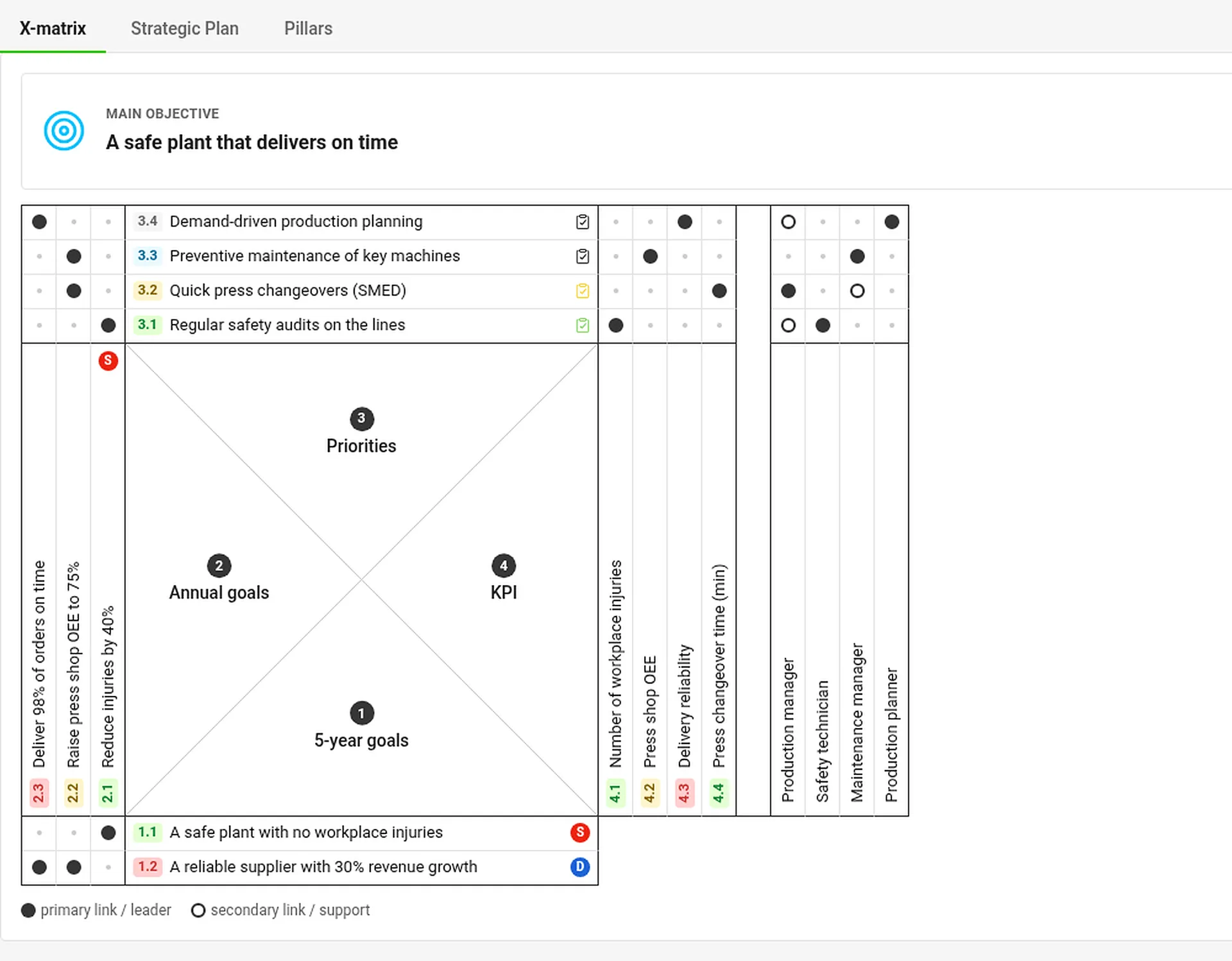
Click any item and everything connected to it lights up: the goals above it and the priorities, KPIs and people around it. Want to focus on that chain? Show only the selected items.
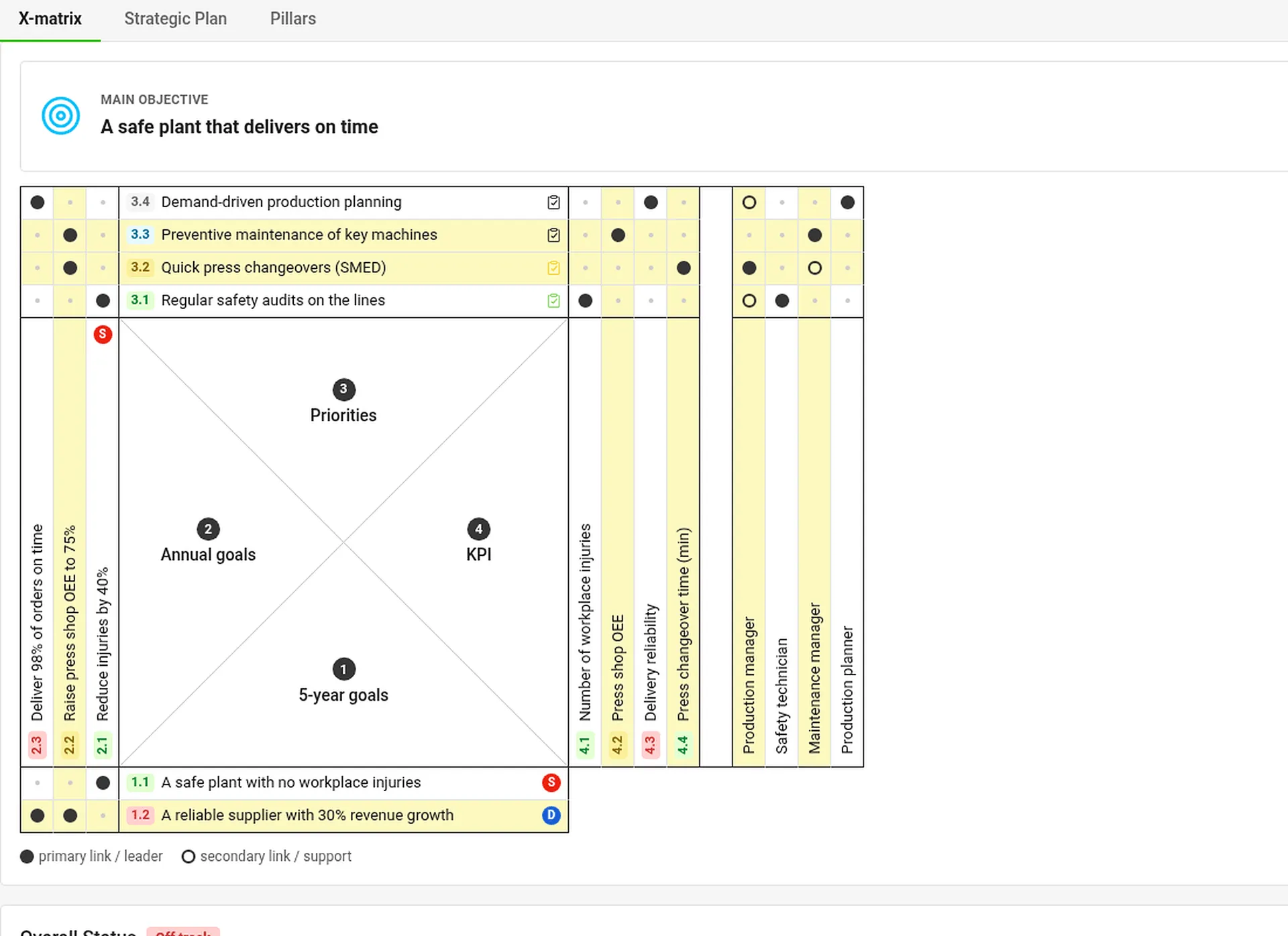
Under the matrix, the Overall Status shows one gauge for each list of the matrix, next to the share of the plan year that has already passed.

One plan, three views
Not everybody likes to read a matrix, and not every audience needs to. That is why the plan now has three tabs, all showing the same data:
X-matrix: the classic view with all the links.
Strategic Plan: a table that follows each 5-year goal down to its annual goals, priorities, projects and KPIs.
Pillars: your goals, priorities and KPIs grouped by theme, such as Safety, Quality, Growth and People.
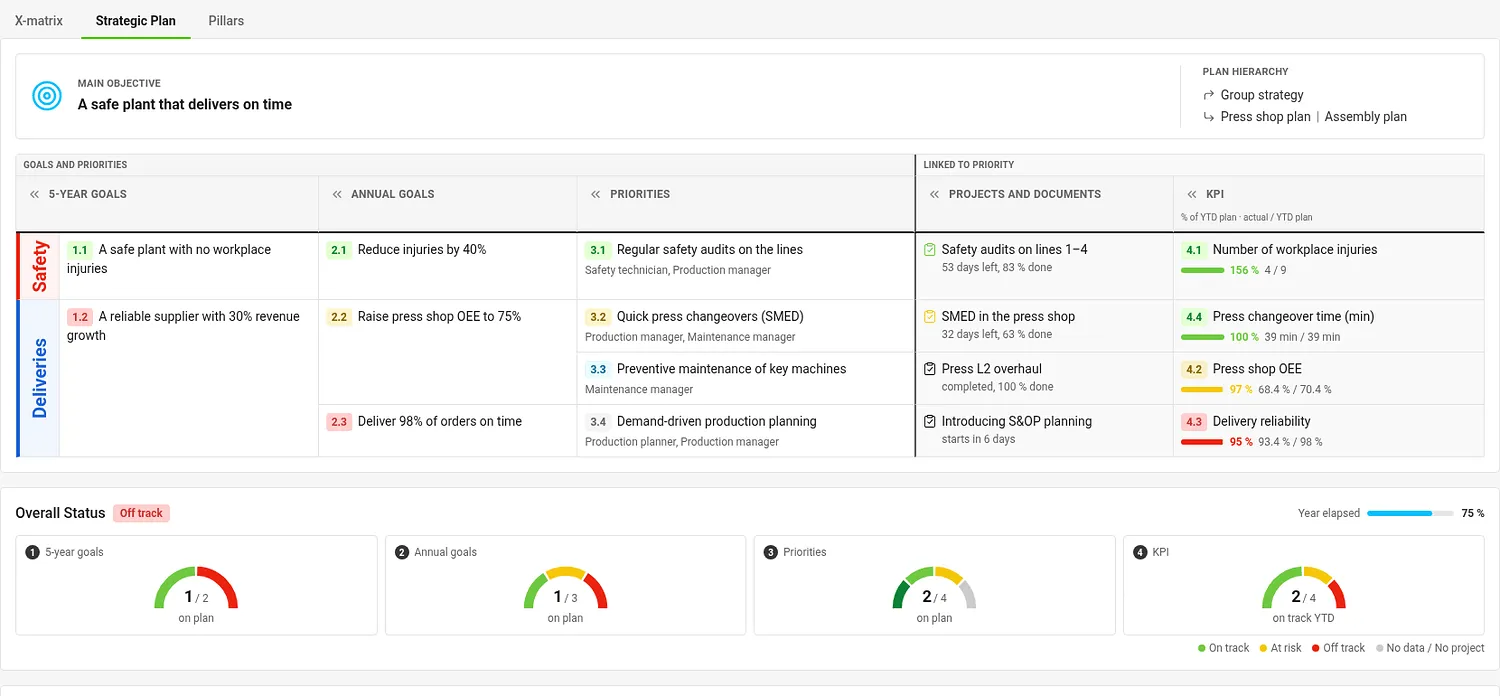
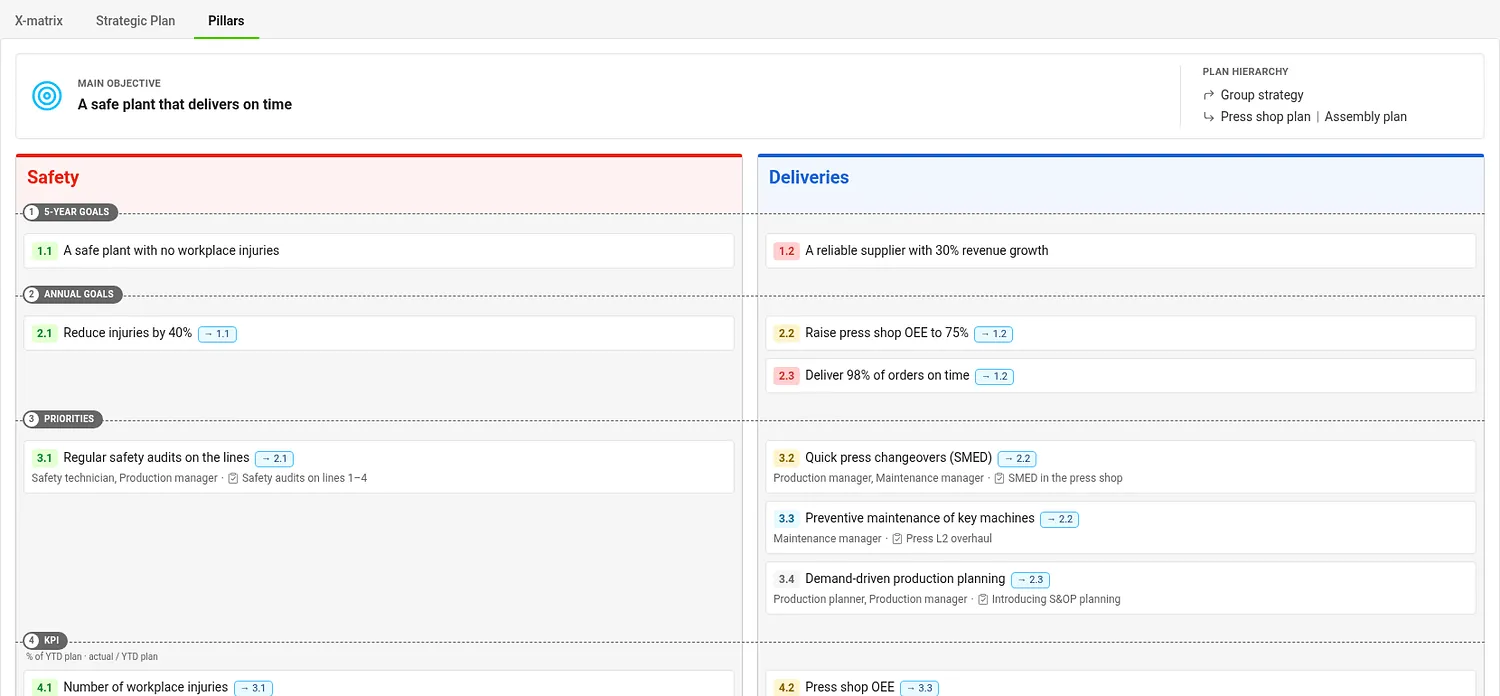
In the plan settings, choose which tab the plan opens in and which pillars it uses. Change an item in one view and it changes in the others.
Statuses you can explain
No more guessing why something is red. Statuses are calculated from the data you already keep in TeamGuru:
a project takes the status of its traffic light,
a KPI takes the color coding of its metric, comparing the year-to-date actual with the plan,
a priority takes the worst status of its running projects (and of its child plan, if it has one),
an annual goal takes the worst status of its priorities and KPIs,
a 5-year goal takes the worst status of its annual goals,
the overall status is the worst of the goals.
Hover over any status and TeamGuru tells you what drives it.
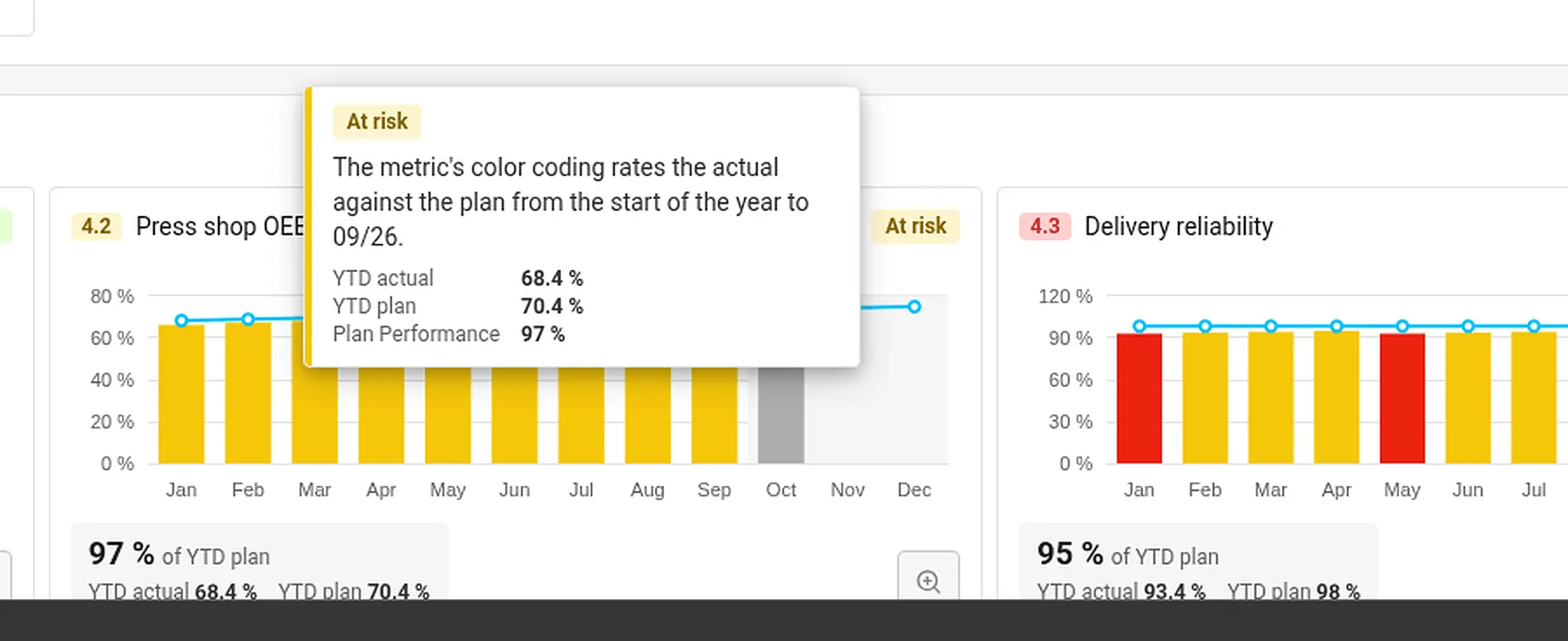
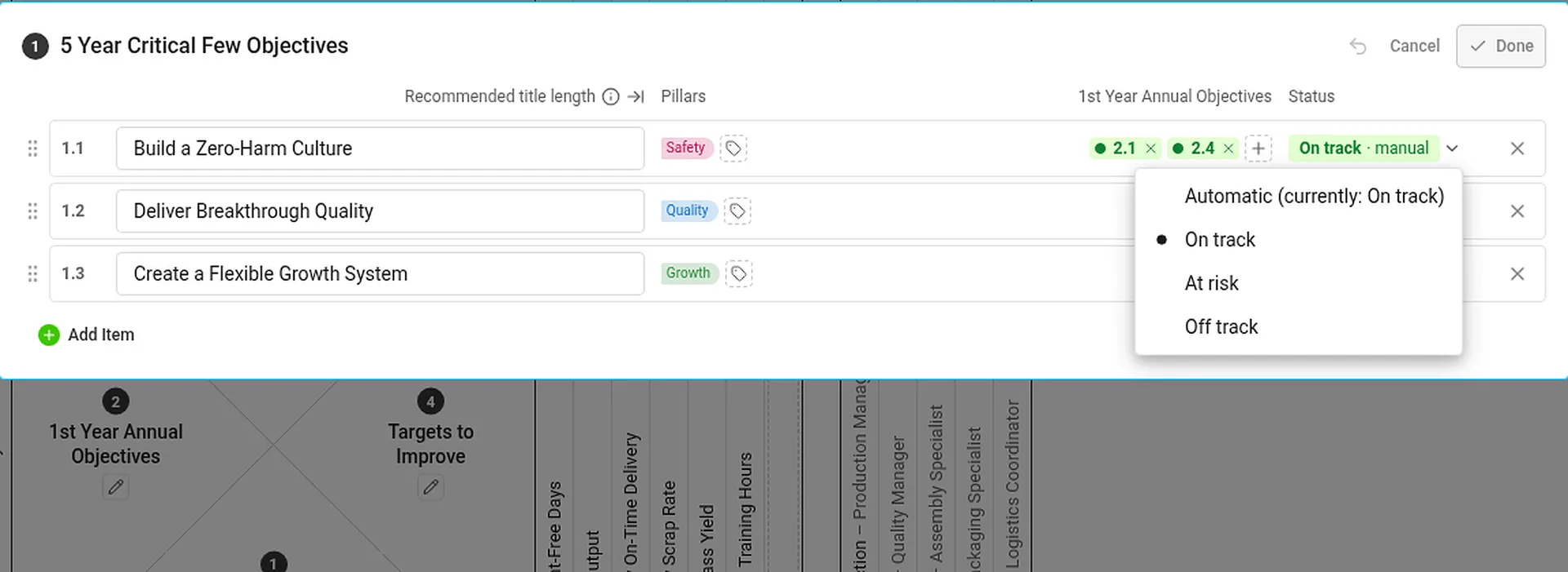
If your judgment differs from the numbers, set the status of a goal by hand. It is clearly marked as manual, and Automatic takes you back to the calculated status whenever you like.
KPIs with the whole story
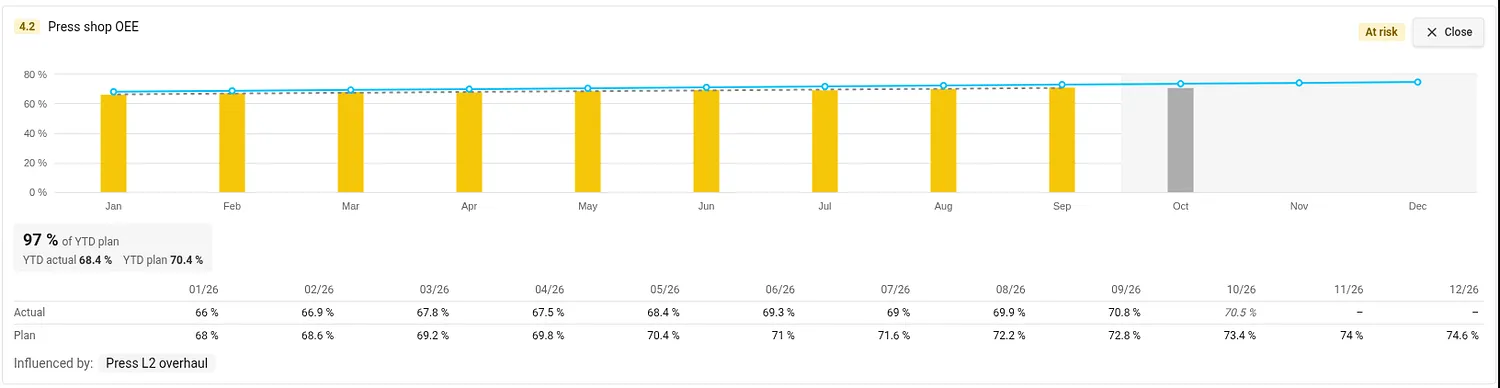
Every KPI gets its own tile: monthly actuals as bars colored by the status of each month, the plan as a line, the rest of the year shaded, and the year-to-date result against the plan.

Open a tile for the detail: a larger chart with a trend line, the table of monthly values and the projects that influence the KPI.
Projects and people in the same picture
The Projects section shows every project linked to the plan with live progress: days left or overdue, the percentage done and its status, together with the priority and pillar it serves. Hover over a project to see how many tasks it has, how many are closed and how many are overdue. In the Strategic Plan view, the people responsible for each priority are listed right under it.

If your strategy is cascaded, the plan hierarchy shows the plans above and below yours. Hover over one for a quick summary: owner, plan year, overall status and the gauges of its four lists.
Edit right where you read
The separate edit screen is gone. You edit the matrix itself, or one part of the page at a time. There is no Save button: your changes are saved when you press Done, click outside the part you are editing, start editing another part, or leave the page. If a save fails, the part stays open with your changes, so nothing is lost.
Type into the "New item…" slot and press Enter. The item is added and the next slot is ready.
Click a label to rename it in place.
Click a cell to cycle the link: none, filled, hollow.
Use the pencil in a quadrant to edit the whole list: drag items to reorder them, add tags and pillars, or set a status.
Prefer RASCI roles over leader and support? One switch does it.
Changed your mind? Step back (or Ctrl+Z) undoes the last change, and Cancel throws all changes away after a confirmation.
Starting from scratch?
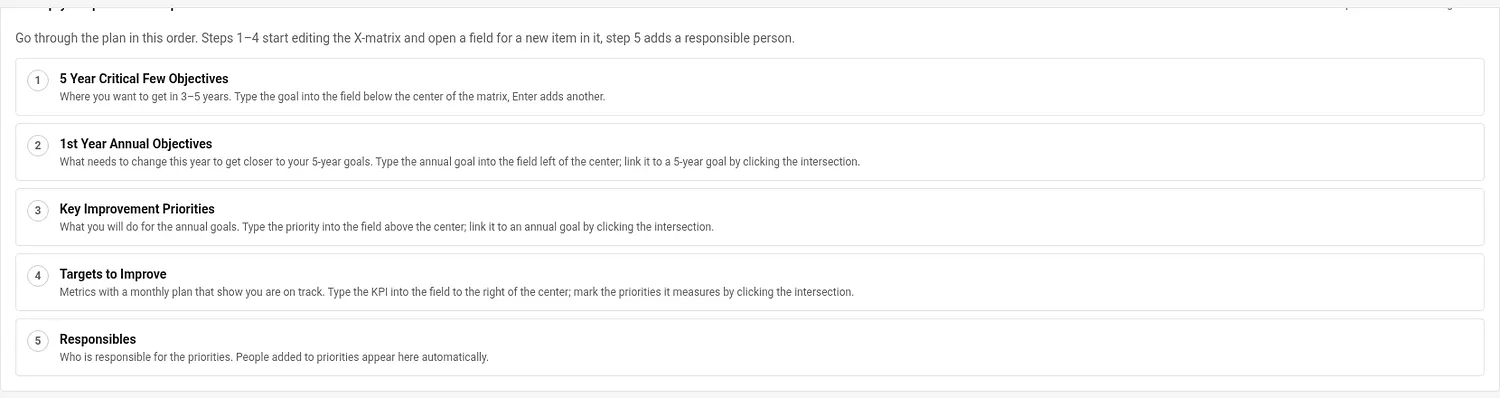
A new plan guides you. Set up your plan in 5 steps walks you through the lists in order, and each step opens the right part of the page for editing. Need inspiration? Open the sample plan, a fully filled-in model factory, and see where you are heading.
Make it fit your organization
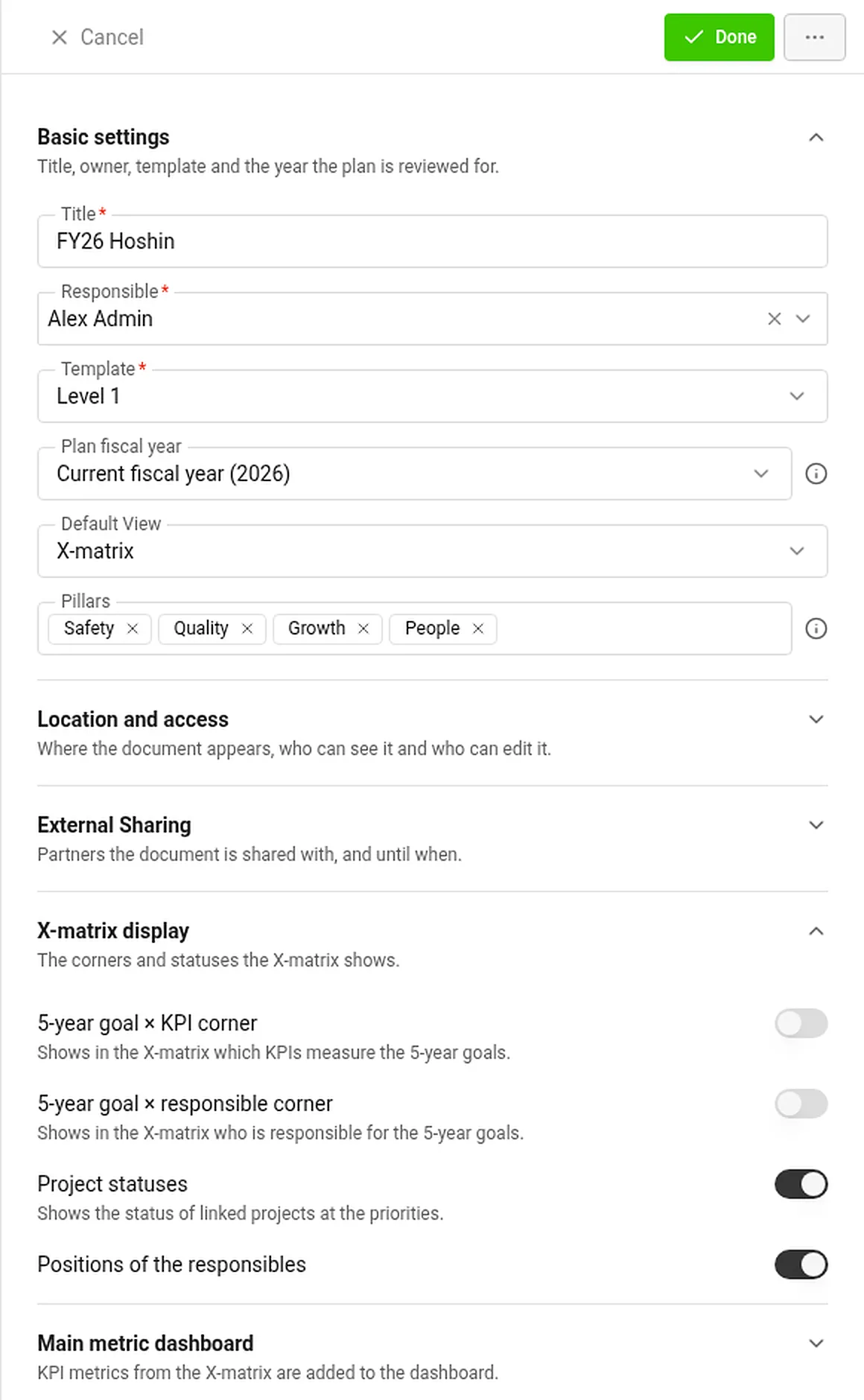
All settings of a plan now live in one panel next to the title. A few are worth knowing:
Plan fiscal year: review any fiscal year, not only the current one. The whole page follows, including elapsed time, year-to-date values and charts.
Pillars and default view: decide how the plan groups its items and which tab it opens in.
Optional corners: show which KPIs measure your 5-year goals and who is responsible for them. They are for orientation only and do not affect the statuses.
Ready for the meeting
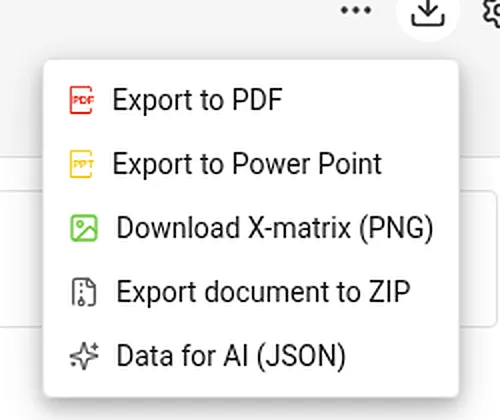
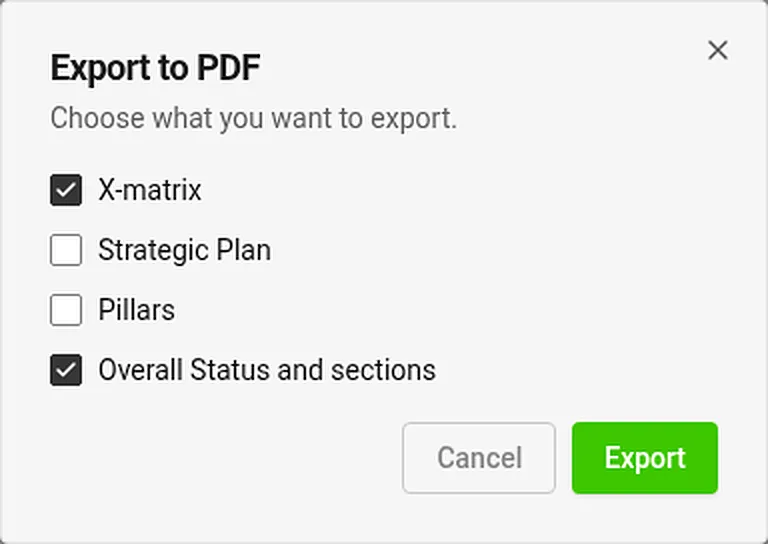
Export the plan as a PDF (landscape, with a title page, the views you choose and every section including the monthly KPI values), as an editable PowerPoint deck, or as a PNG of the matrix. Before TeamGuru creates the PDF or the deck, you pick which views and sections go in.
Good to know
The previous multi-tab edit screen has been replaced by the dashboard and the settings panel, and links to the old addresses lead you to the new pages. Permissions work as you know them: everybody with access sees the same statuses, and editing controls appear only for people who may edit. If AI features are enabled for your TeamGuru, you can also generate a first draft of a plan.
Try it
Open one of your Strategy Deployment plans and take the new dashboard for a spin. Not sure where to start? The sample plan is one click away. And if you have questions or ideas, we would love to hear from you.