
Create Document that Works for You
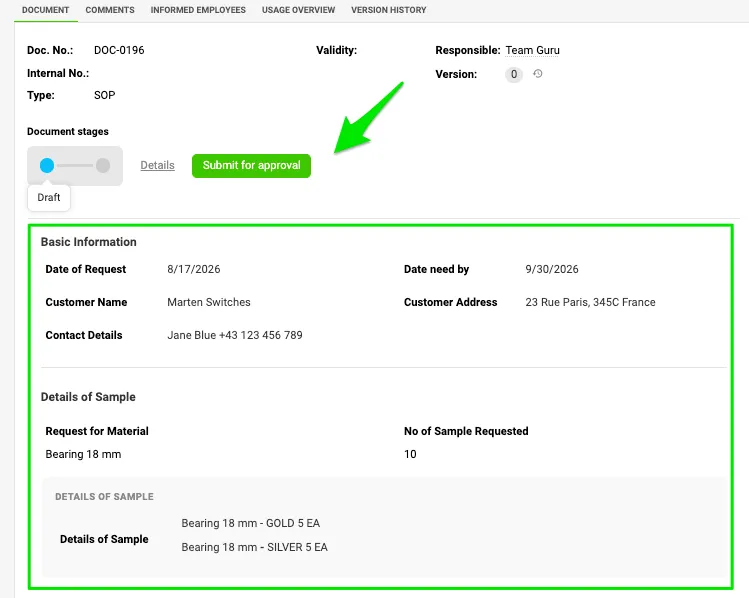
Meet the latest addition to the Documents module: the customizable Document Template. Giving you the flexibility to create sections, tabs and fields you need—whether it’s dates, list-box options, text, or more.
Combine it with the recently added Document Stages & Approval feature, and you have everything you need to keep your documents organized, controlled, and transparent from start to finish. Use it for feedbacks, evaluations, customer requests—and so much more. The possibilities are endless!
The Side Panel You Didn’t Know You Needed
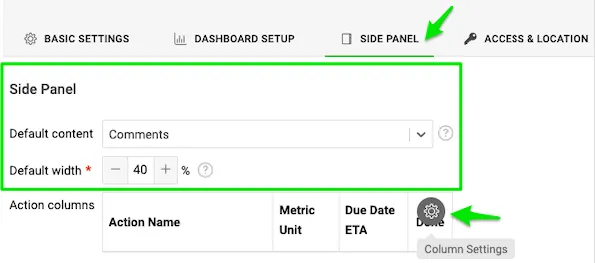
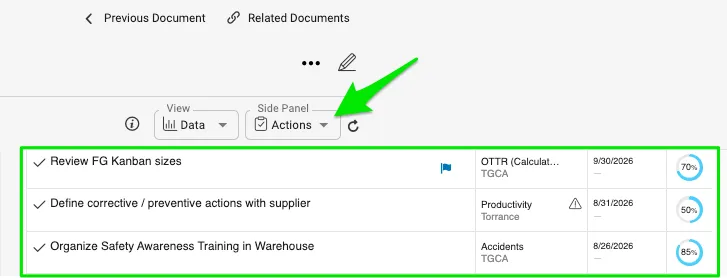
The Side Panel has always been just a click away, but now you can choose to keep it open and visible whenever you need it. Simply go to Dashboard Settings and select the Side Panel tab to choose which items you’d like to display. You can also customize your Actions view by selecting the columns you want to see, making it easier to keep the information most important to you right at your fingertips.
Let Your Actions Set Their Own Start Dates
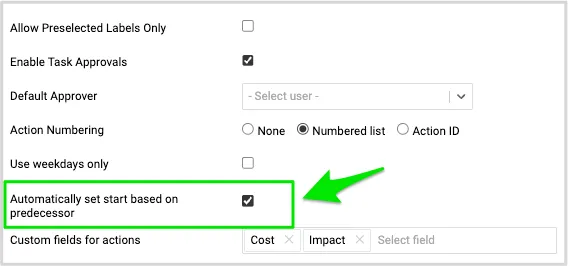
You can now automatically set an action’s start date based on its predecessor without additional click. Simply enable this feature in your Document Settings. Once activated, when you create an action with a start date, due date, and a dependency on the next action, the dependent action’s start date will automatically align with the due date of its predecessor—helping you keep your actions connected and your timelines on track.
Data Mass Import Without Mapping
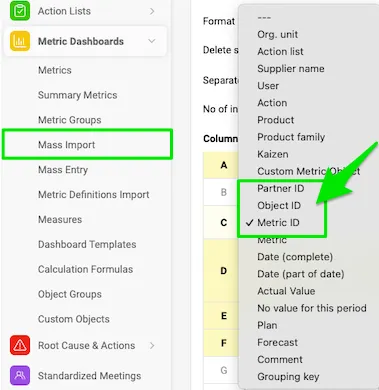
Need to upload data without the hassle of mapping entities? You can now skip the mapping step by using the newly added Metric ID, Partner ID, and Object ID fields in the file template. Instead of matching entity names during the upload, simply include the corresponding IDs in your file, and the system will automatically identify the correct entities—making mass data imports faster, easier, and more efficient.
Small Changes, Big Difference
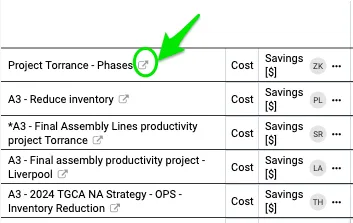
Need to get to your project quickly? Now there’s an even easier way to jump right in. Select the icon next to your object, and you’ll be taken directly there. One simple shortcut, and voilà!
Wondering which attachment is the latest or most relevant? You can now see when each attachment was added and who added it, making it easier to identify the right file at a glance and get to the information you’re looking for faster.

Keep Kaizen Documents in the Right Place
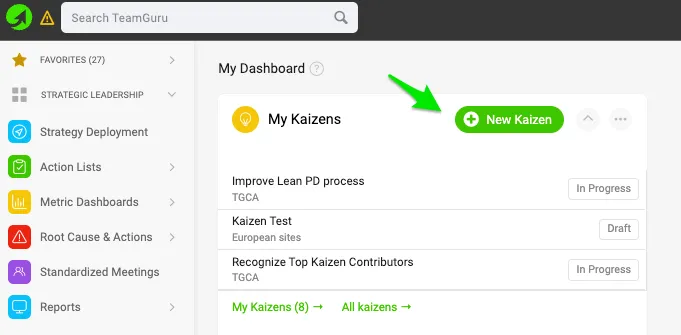
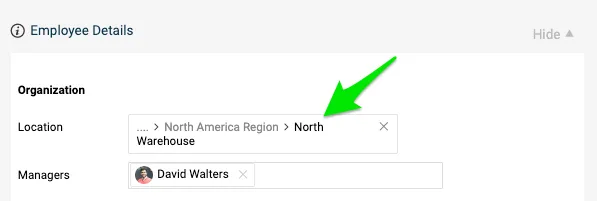
Organize your Kaizen documents with less effort. Simply assign each user to the appropriate location in their profile. Then, whenever they create a new Kaizen document, it will automatically be saved in the correct folder. You can also assign the appropriate manager to each user, making it easy to maintain the correct reporting structure.
About the author

Kate Apking
Customer Success Enthusiast at TeamGuru. Kate works closely with teams using TeamGuru in their day-to-day management and writes about leadership, adoption, and management best practices.